Install the desktop app
ScreenLab is a Mac-only desktop app that runs in the background and logs your activity.
- Sign up if you don't have an ScreenLab account
- Click here to download the app. Open the file & drag to 'Applications'
- Launch the app. A flask logo with a red dot will appear in your menu bar. Click to open and log in with your username/password
- Accept the requested automation permissions
Install the browser extension
The browser extension works with all major browsers except Firefox (Chrome, Safari, Edge, Opera, Brave, etc).
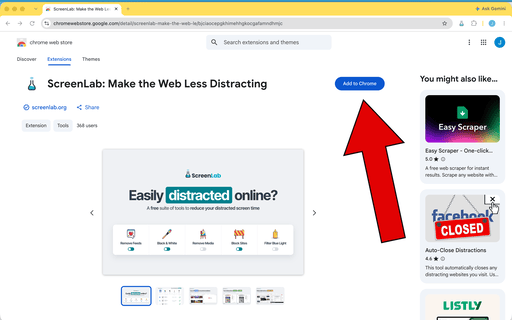
Click the below link to go to the Google Web Store
Your browser is not supported. Please consider Chrome, Safari, Edge, Opera, or Brave to use ScreenLabThe ScreenLab extension is not available for mobile browsers- Click the blue "Add to (Browser)" button to install
Sign in to start
- Log in to use the platform